New on ChessMoon
The latest additions to the site at a glance. The guides further down explain each of them.
Lessons
A lesson library with level, language and topic filters, live lessons with instructors, practice steps you play against the engine, and complete courses such as Capablanca's Chess Fundamentals.
Puzzles
Classic Puzzles, Puzzle Streak, Puzzle Storm and the Daily Puzzle. The puzzles are written by players and checked by Stockfish and the puzzle team before they go live.
Live Broadcasts
Follow top over-the-board tournaments live, with every board of a round on one page and the engine's evaluation and arrows on each game.
Streamers and Videos
Streamers shows the ChessMoon streamers who are live on Twitch; watch the stream and its chat right here. Videos brings instructional YouTube videos together by topic, level and language.
Share a tournament
Share Link on a tournament page gives you a link to copy, a QR code and WhatsApp and Facebook buttons. A friend who opens the link comes straight back to the tournament after signing up.
Free Premium for Students
Students get 3 months of Premium for free. All you need is your school e-mail address.
Why players choose ChessMoon
Play chess for free on our online boards. No registration, no ads, no plugin required.
Socialize
Share images, videos and chess games on your wall, and keep in touch with other players through the built-in messaging.
Chess Variants
Besides standard chess you can play Crazyhouse, Three-Check, Chess960 and Blindfold, and thematic games that start from a chosen opening.
Free
Play chess for as long as you like without paying anything, and improve your game with puzzles and lessons.
A complete chess experience
Everything you need, whether you play for fun or for rating.
Tournaments
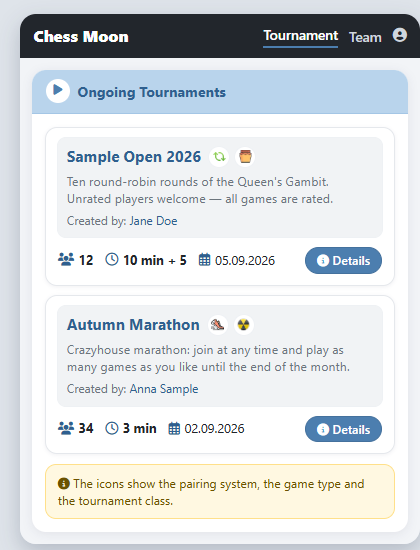
- Take part in thematic and arena tournaments. Time controls are configurable, and both Round-robin and Swiss pairings are available.
- Each tournament has its own page with the entry list, standings, crosstable, the games played and a PGN archive.
- You can join or leave a tournament at any time until it starts; an arena can still be joined while it runs.
- The site runs its own tournaments every week, from blitz evenings to slow correspondence events.
- The site keeps detailed statistics. Every player has five ratings: Blitz, Standard, Wild, Puzzle and Monthly Performance. Your profile shows how each of them changed over the last 30 days and charts the last 12 months.
- Rated games are calculated with the Elo rating system.
Teams
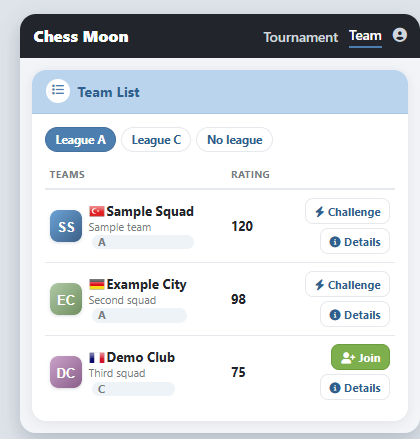
- Found your own team on the site. Teams have their own ratings and compete in the league every season.
- A new team starts in League World and climbs up to League A by winning team matches. The league tables are published on the Team page.
- Captains challenge other teams and pick the players for every match; members set how often they want to play in their team preferences.
- Each player plays on a numbered board: board 1 meets board 1, board 2 meets board 2, with 2 to 20 boards per match. This is the format of a traditional over-the-board (OTB) club league, which most online sites cannot run without complex external management.
- Every team has its own page with its active matches, members, match history and wall, and the captain can send a message to the whole team.
Puzzles
- Solve puzzles to sharpen your tactics and raise your puzzle rating.
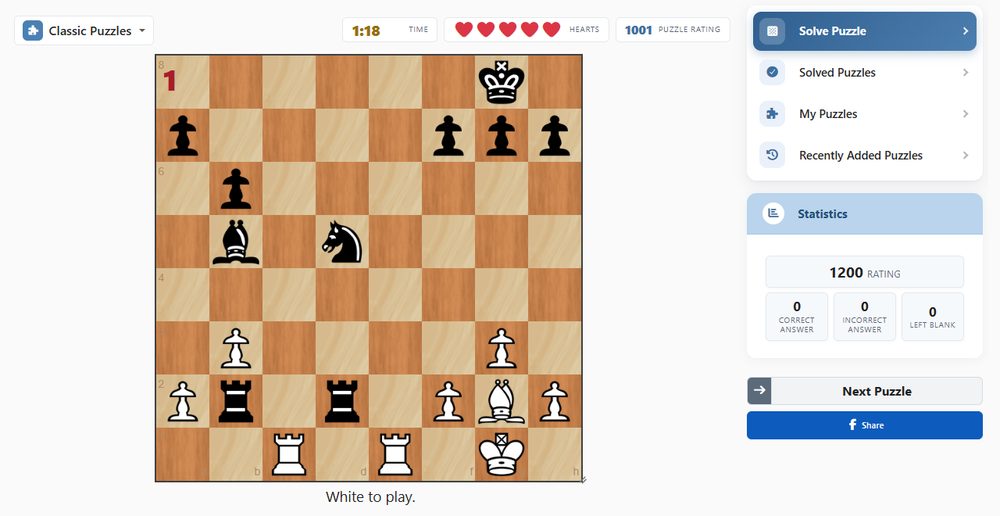
- Pick the puzzle type from the menu above the board: Classic, Streak, Storm or Daily.
- Set the difficulty from Very Easy to Very Hard; the puzzles are picked around that level of your puzzle rating.
- A Streak ends with your first wrong move, a Storm gives you three minutes, and the Daily Puzzle is the same for everybody.
- The puzzles are written by players: you submit the position and the solution, the puzzle team reviews it, and it joins the pool once it is published.
Lessons
- Lessons take you through a topic step by step, with the instructor's comments beside the board.
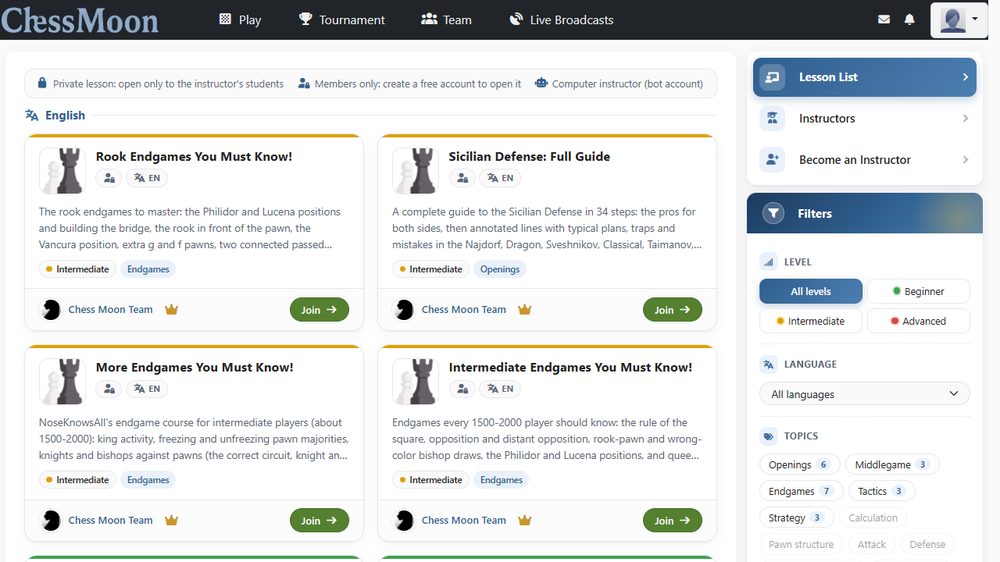
- The lesson list is grouped by language; search it by title or instructor, or filter it by level, language and topic.
- Instructors also give live lessons: the ones running now or starting soon are shown at the top of the list.
- Some steps are practice positions that you play yourself against the engine.
- Complete courses are available too, such as Capablanca's Chess Fundamentals with its own practice lesson.
- Instructors and premium members can create their own lessons.
Videos
- The video library brings instructional chess videos together in one place.
- Filter the videos by topic, level and language, or search for a title or a channel.
- Every video opens on its own page together with similar videos, and the ones you have already seen are marked.
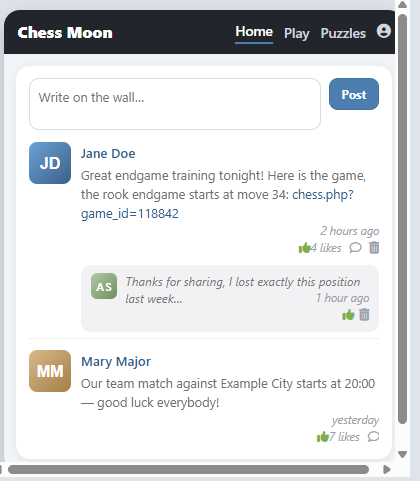
The Wall
- Share images, videos or chess games on your wall and on the friends wall; a pasted link becomes a clickable link or an embedded player.
- Other players can like your posts and reply to them.
- Every team has a wall of its own, so members can talk without leaving the team page.
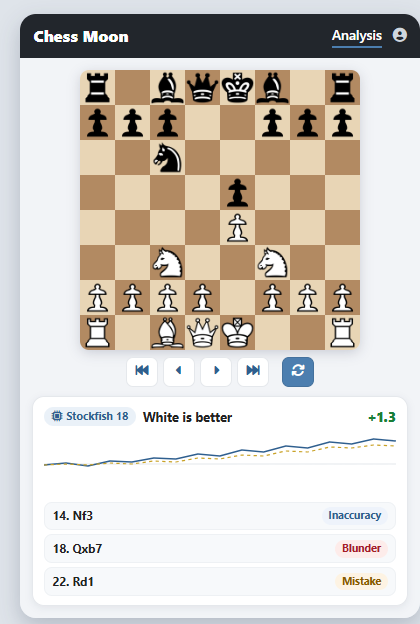
Analysis
- Open one of your finished games and press Analyze: the board switches to Self-Analysis. Turn the engine on with the Engine power switch and explore any move you like.
- The engine is Stockfish 19 and runs in your browser. It shows several lines at once, each with its own arrow on the board.
- Create Analysis Report goes through the whole game at the depth you choose and marks every inaccuracy, mistake and blunder; the report is saved with the game.
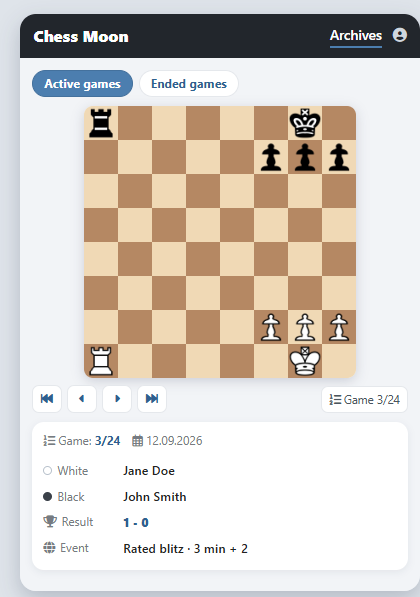
Archives
- Every game you play is kept in your archives, with its moves, players and result.
- Replay a game on the board, look at the best games of a period, or download your games in PGN format.
- Switch between your active and finished games and open any game in the list straight away.
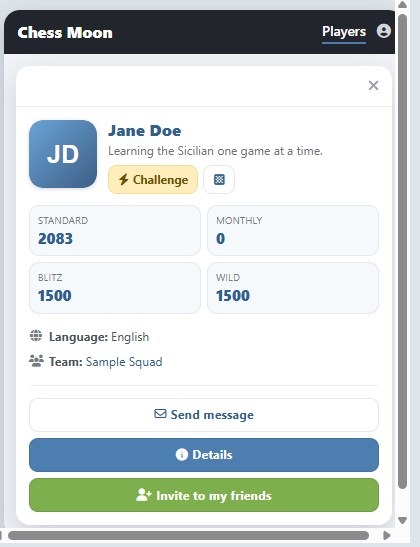
Friends
- Click a player's name to open their card, then press Friend Request.
- The player sees your request on the home page and can accept or reject it.
- Your friends are listed together, so you can challenge them, message them or invite them to a game in one click.
And more…
- Premoves are supported in blitz games.
- Correspondence games have a vacation system.
- Correspondence games can run with two clocks: one for the whole game and one for each move.
- Zen Mode hides everything except the board and the clocks. Turn it on from the board, or keep it on in your settings.
- The Opening Explorer shows which moves were played from any position and in how many games, across all games or in a single player's games.
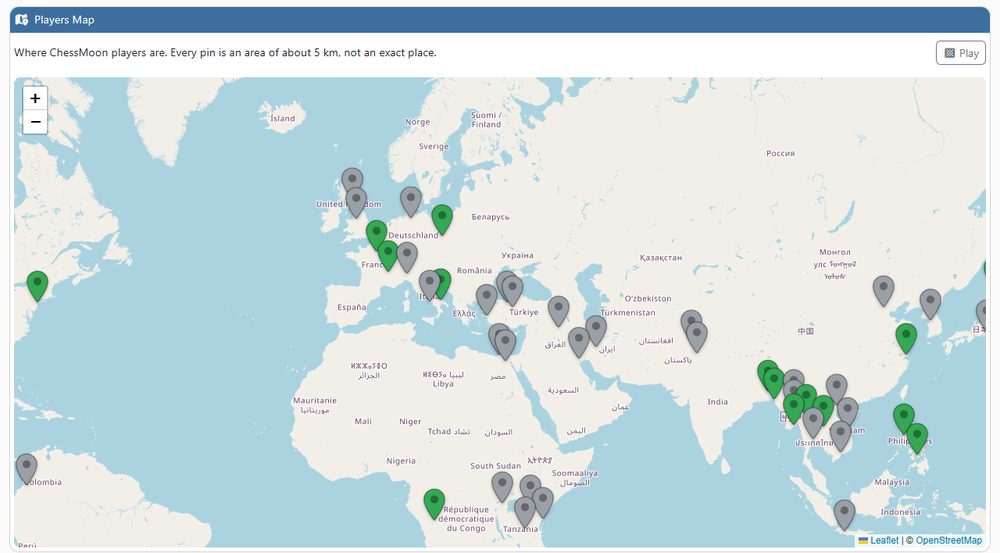
- The Players Map shows where ChessMoon players are, each pin covering an area of about 5 km, never an exact address.
- The site comes in a light and a dark theme.
- Players who do well on the site are awarded premium membership and medals such as Merit, Success, Honour and Social.
We've got you covered
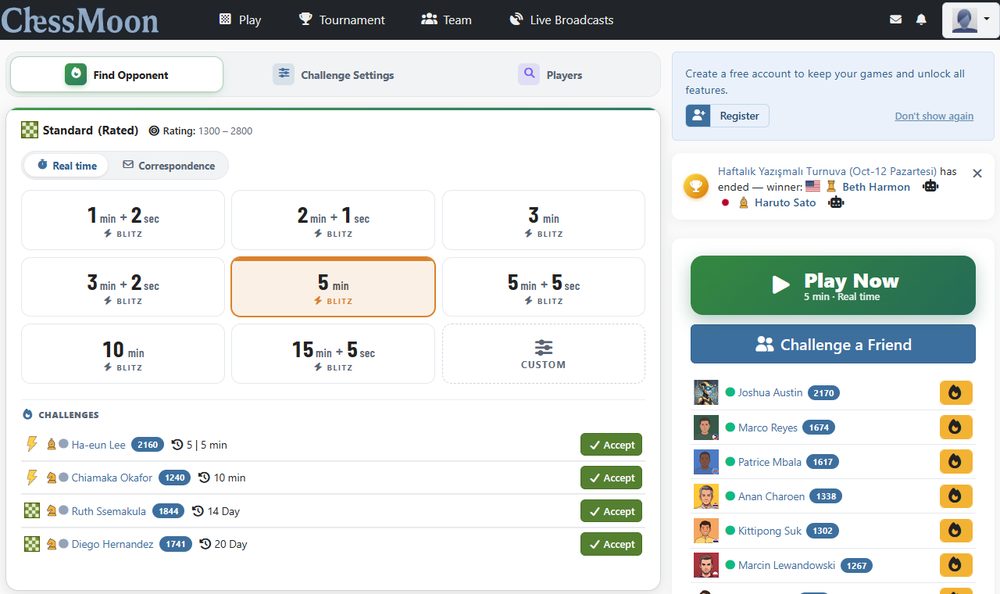
The site works wherever you have an internet connection. You can start without registering: press Play Now on the login page to play as a guest. Guests can play games, rated ones included, solve puzzles, take lessons, use the board editor, watch videos and live broadcasts, look at the players map, join Swiss and Arena tournaments of 3 minutes to 1 hour and write to the administrators. Teams, creating tournaments, Game Checkup, the Opening Explorer, messages, friends and settings need a free account; links to them carry a small lock.
Sign in with your e-mail address and password, or with your Google account in one click.
Playing is free. Premium membership is also free for players holding a Grandmaster, International Master or FIDE Master title, and students get 3 months of Premium for free with their school e-mail address (Free Premium for Students).
Play with your friends and with everyone who loves chess as much as you do. We look forward to seeing you!
Board Editor
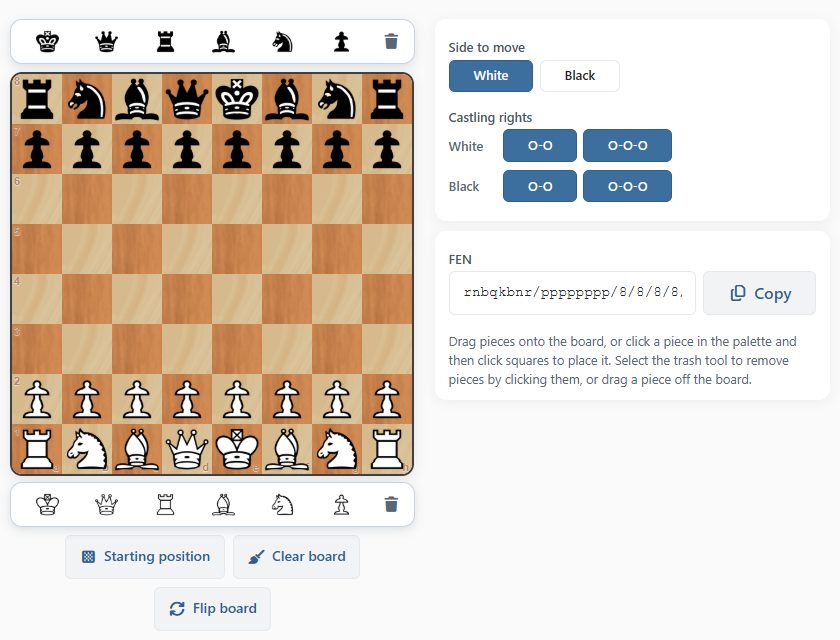
- Set up any position by dragging pieces from the palette onto the board.
- Choose the side to move and the castling rights with a click.
- The FEN of the position is updated as you edit; copy it to use the position in a game, a lesson or a puzzle.
Frequently asked topics to get you started.
Game Types
Besides standard chess, the following variants are supported: Crazyhouse, Three-Check, Chess960, Blindfold.
Blindfold is played with the standard rules, but while the game is running every piece is shown as a plain white or black disc, so you have to remember which piece stands where. The move list stays visible, and the real pieces come back as soon as the game ends. Blindfold games count towards your Variant Rating. You can choose Blindfold in game invitations and when creating a tournament; robots do not play it.

Lobby
Enter the lobby to make it easier for opponents to find you. While you are in the lobby, game invitations are accepted automatically.
Robots, the site's computer players, keep open invitations in the lobby too. They play standard chess with a time control of 5 minutes or longer.

Tournaments
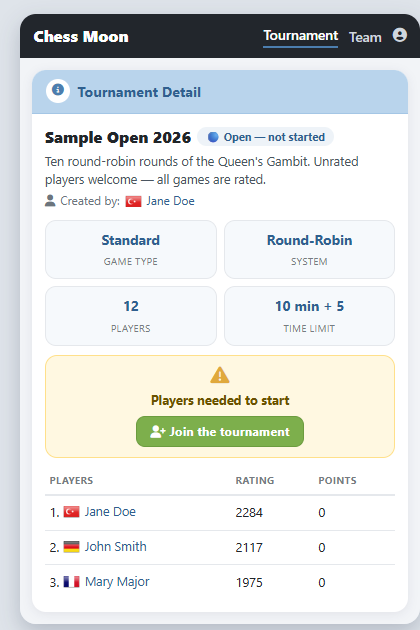
Tournaments are listed under Tournament in the main menu, grouped as Pending, Ongoing and Finished. The icons on each card show the game type (Crazyhouse, Three-Check, Chess960, Blindfold), the pairing system (Round-robin or Swiss) and the tournament class.
A tournament starts once it has the number of players it was created for. Until then you can join it and invite your friends; the join button is on the tournament page.
To invite friends, press Share Link on the tournament page. It opens the tournament link with a copy button, a QR code and WhatsApp and Facebook buttons. A friend without an account who opens the link is brought back to the tournament after signing up or signing in.
Weekly tournaments. The site creates these tournaments itself, every week:
- Crazy Monday — Crazyhouse, every Monday evening.
- Daily Swiss Tournament — eight players, three rounds of three-minute games, on Tuesday, Thursday and Friday, at midday and in the evening in turn.
- Deep Thought Tuesday — a correspondence round-robin with two days per move, every Tuesday.
- Wednesday Night Arena — a one-hour arena, every Wednesday evening.
- Fischer Friday — Chess960, every Friday.
- Saturday and Sunday Night Blitz, and Saturday and Sunday Midnight Blitz — three rounds of three-minute games at the weekend.
- Sunday Slow Chess — a correspondence round-robin with two days per move, every Sunday.
Types of tournament:
- Thematic — every game starts from the same opening position.
- Arena — players may join after it has started; as soon as your game ends you are paired with a new opponent, so the more you play, the more points you score.
- Rating range — a tournament can be limited to a rating range, so that players of similar strength meet each other.
- Class — set by the site: Class A tournaments are organized by the site with prizes, Class B ones without prizes.
Teams
Premium members, and players who have earned 200 Site Credits, can found a team from Team in the main menu. A new team starts in League World, and the best teams of the season are promoted towards League A. The league tables and the team list are on the same page; the list is sorted by the teams' current rank.
To join a team, press Join this Team in the team list or on the team page. You can be in one team at a time. Once the captain accepts your application, the same page lets you send a message to the whole team, change your team match preferences or leave the team. Captains can also invite a player directly with Invite to Team on the player's card.
Team matches are played board by board. The captain names one player for every board, and the two teams meet board 1 against board 1, board 2 against board 2 and so on, with the colours alternating from board to board. A match can have 2, 4, 6, 8, 10 or 20 boards, so even a large club fits into a single match. This fixed board order is the traditional over-the-board (OTB) club league format; most online sites do not support it and need complex external management to run such a league.
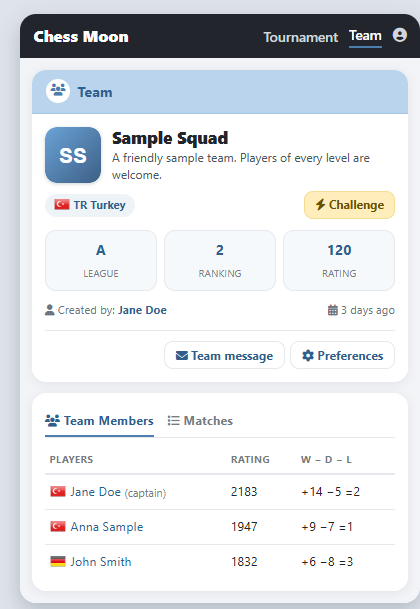
A team page shows:
- Active Matches — the team's running and pending matches. While a match waits for your side's line-up, the captain sees a Choose Boards button here.
- Team Members — ratings, win/draw/loss record and team points.
- Team Matches — the matches played for the team, board by board, with each player's result; Watch opens any of the games.
- Wall — messages written by the team members, in a tab of its own.
Board Editor
Open the Board Editor from the Tools box of the main menu. You do not need to be registered to use it.
Drag a piece from a palette onto a square to place it: the top palette holds the black pieces, the bottom one the white pieces, and the bin at the end of each palette removes a piece. The three buttons under the board set up the starting position, clear the board and flip it.
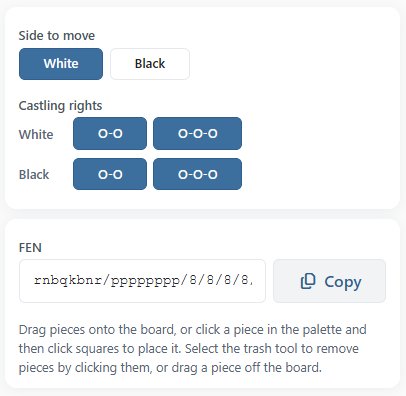
Next to the board you can set:
- Side to move — White or Black.
- Castling rights — kingside and queenside castling for both colours.
The FEN of the position is filled in as you edit, and the copy button puts it on your clipboard, ready to paste into a game, a lesson or a puzzle.
Lessons
Open Lessons from the main menu. The lessons are grouped by language. Type into the search bar to find a lesson by its title or its instructor, and use the filters beside the list to narrow it down by level, language and topic.
Live lessons that are running now or start soon are shown at the top under Live and upcoming; press Join live to take part in a running one.
The icons on a lesson card show who can open it: a lock marks a private lesson for the instructor's students only, a user with a lock a members-only lesson (a free account is enough), and a robot a lesson given by a computer instructor. Their key is under the list. Press Join to open the lesson board.
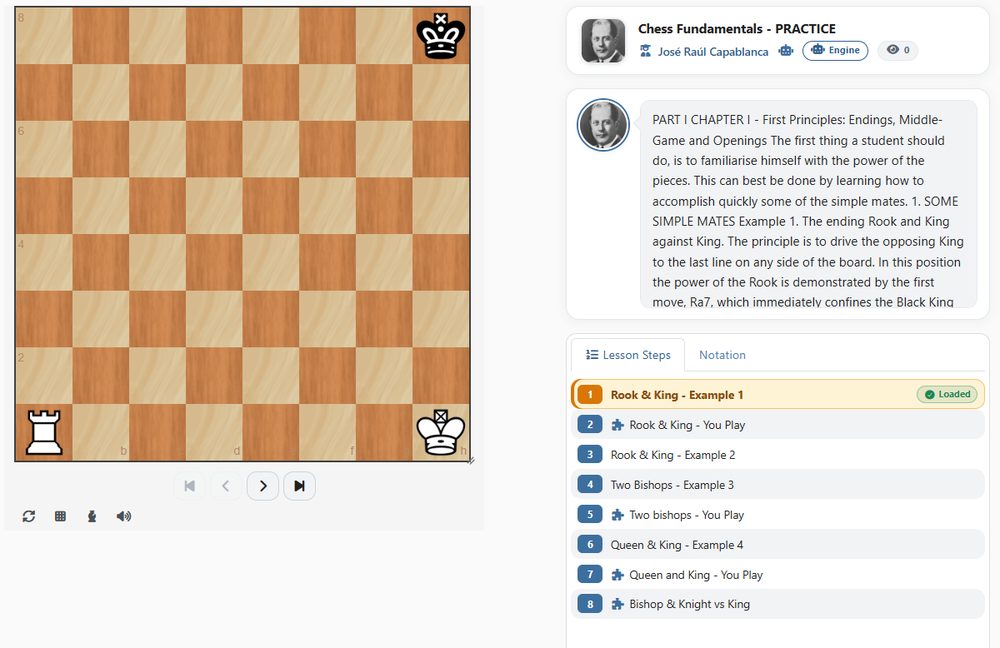
On the lesson board you can:
- Read the instructor's comment beside the board and step through the moves with the arrows under it.
- Jump to any step from the Lesson Steps list, or switch to Notation to see the moves.
- Play the practice steps, marked with a puzzle piece, yourself against the engine.
- Explore a side line of your own and come back with Return to main line.
Instructors and premium members can create their own lessons with New Lesson; a new public lesson is announced on the home page. On the lesson board, Import PGN takes pasted moves and Upload PGN file reads a .pgn file; every game of a file with several games (up to 75) becomes a step of its own. The instructor opens the lesson's details again with Edit in the lesson header.
Would you like to teach? The Teach on ChessMoon card beside the lesson list leads to the instructor application form. An administrator reviews your application, and once it is approved you can give live lessons and create lessons.
Videos
Open Videos from the main menu to browse the video library: instructional chess videos chosen for ChessMoon players. The library is open to members; a free account is enough.
To find a video:
- Topics — pick one or more topics, such as openings, endgames or tactics; with several topics you see the videos that cover all of them.
- Level and Language — show only the videos for your level or in your language.
- Search — look for a word in the title, the channel or the description.
Click a video to watch it on its own page, with its details and Similar videos to watch next. The videos you have already seen are marked Watched.
Premium members can add videos to the library with Add a video.
Puzzles
Puzzles are under Puzzles in the main menu. The board shows a position and it is your turn to find the best move. A correct answer raises your puzzle rating; a wrong or skipped answer lowers it.
Use the menu above the board to change the puzzle type. The chips beside it show the running values of the type you picked: time, hearts, streak length, score and your puzzle rating.
Puzzle Difficulty, next to that menu, sets how hard the puzzles are: from Very Easy to Very Hard, the puzzles are picked around that level of your puzzle rating. The Daily Puzzle has no such choice, as it is the same for everybody.
Where the puzzles come from. Puzzles are written by players, not copied from a database. Press New Puzzle under the board, set up the position (or paste its FEN), play the solution on the board, and choose the question, the rating and the tags; the solving time follows the rating. Stockfish checks the position and the solution before anything is saved, and a puzzle with an illegal move or a wrong solution is sent back with the reason. A correct puzzle is saved and a review request goes to the puzzle team. An administrator checks it, corrects it if necessary and publishes it by setting it to Active; only then does it enter the common pool, where it is served with its rating and its correct / incorrect counters.
My Puzzles collects everything you have submitted. Every puzzle can be voted up or down, and has a report link for a wrong or unclear position.
Most other sites work the other way round: their puzzles are mined automatically from game databases with engine scripts, with no player authoring and no review step. On ChessMoon, the submit → review → pool route lets the community write the puzzles itself.
Puzzle types:
- Classic Puzzles — a clock for every puzzle and five hearts; hints are allowed.
- Puzzle Streak — solve one puzzle after another; a wrong move ends the run.
- Puzzle Storm — three minutes to solve as many puzzles as you can.
- Daily Puzzle — the same puzzle for everybody, once a day.
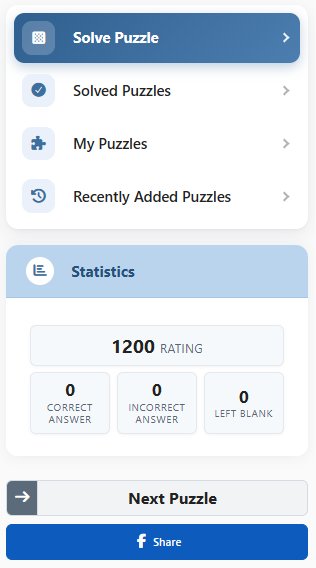
The hint and Next Puzzle buttons are in the statistics box under the board, together with your rating and your correct / incorrect / skipped counts.
The Wall
Your wall is on the home page and on your profile page. Type your message into the box at the top and send it; the post appears at the top of the wall straight away.
Paste a game address, an image or a video link into the text and the wall turns it into a clickable link, a picture or an embedded player.
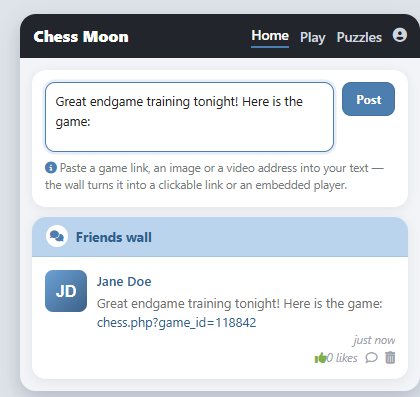
Under every post you can:
- Like it with the thumbs-up icon and see how many other players liked it.
- Press the speech bubble to write a reply; the reply box stays closed until you open it.
- Delete your own posts and the replies written under them.
Analysis
Analysis is available for your own finished games. Press Analyze to open Self-Analysis and switch the engine on with Engine power. Step through the game or try moves of your own: the engine lines and their arrows follow every position, and the moves you try are kept in the notation as variations. The gear button opens the Engine settings (depth, search time and the number of lines).
For a full review press Create Analysis Report and pick a depth; the time each depth needs is shown before you start. The engine then goes through the whole game, the evaluation graph grows move by move, and the finished report is saved with the game. Next time, Analysis available opens it straight away.
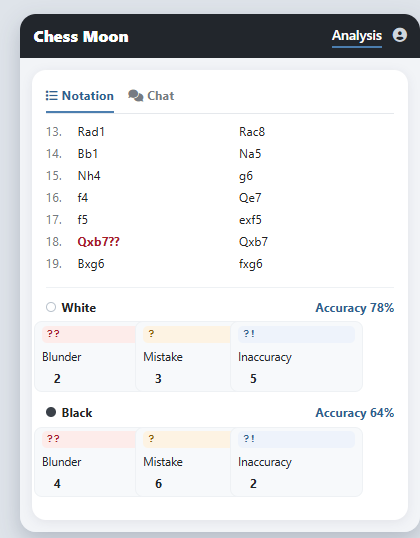
Next to the notation you also get:
- Accuracy of both players as a percentage.
- Blunder, Mistake and Inaccuracy counts for White and for Black.
Live Broadcasts
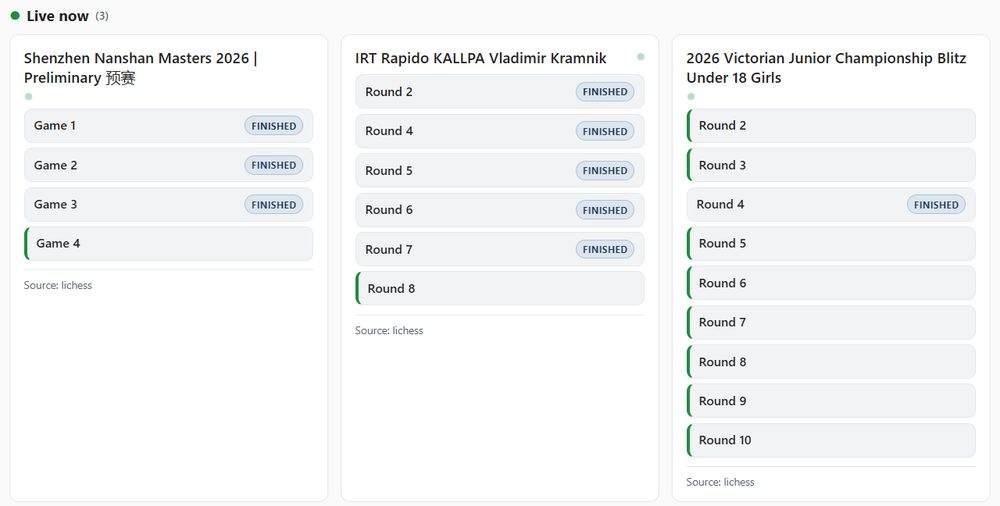
Open Live Broadcasts from the top menu to follow over-the-board tournaments from around the world. The list is split into Live now, Upcoming and Finished, and every event lists its rounds.
Pick a round to see all of its boards on one page, with the players' names, titles and ratings, and each result as it comes in.
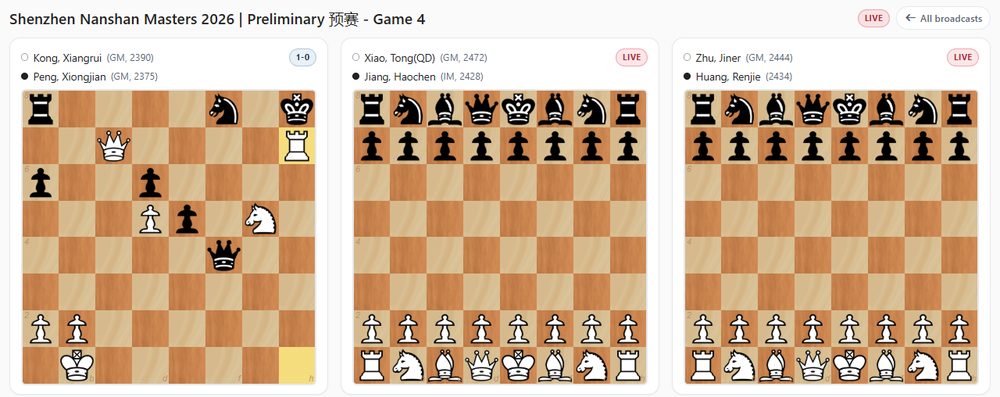
Click a board to follow that game on its own. The new moves arrive by themselves, and you can step back through the game with the arrows under the board.
- Engine — tap to start it. The evaluation bar and the engine's best lines follow the position, and the lines are drawn as arrows on the board; tap a move in a line to preview it.
- Analyse — goes through the whole game and shows the Accuracy of both players and their blunders, mistakes and inaccuracies. During a live game the analysis is brought up to date with every new move.
These games are relayed from the organisers' feed; they are not played on ChessMoon. Live broadcasts are open to guests too.
Archives
Your archives open from your profile. My Active Games lists the games still in progress and My Finished Games the completed ones; pick a game from the list to load it on the board.
Step through the moves on the board or read them in the move list beside it; the game header shows the players, the result and the event.
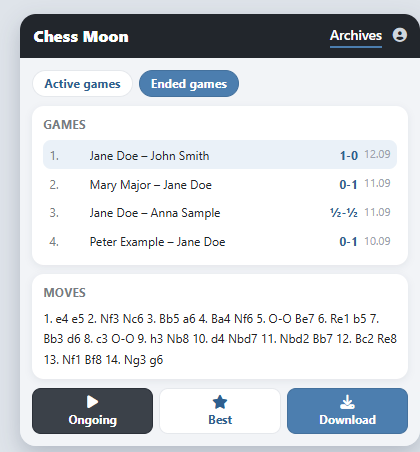
The buttons under the list:
- Ongoing — the games that have not finished yet.
- Best — the best games of the period.
- Download Games — your games as a PGN file, ready for your own chess software.
Friends
Click a player's name anywhere on the site to open their player card. The green Friend Request button on the card sends a friend request; it is not shown for players who are already your friends.
Friend requests are listed on the home page. Press Accept to add the player to your friends or Reject to remove the request. Later you can withdraw a request you sent, or remove a player from your friends list.
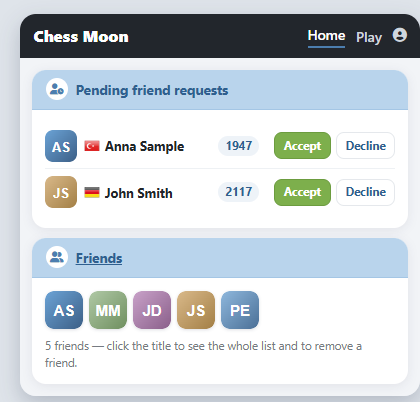
With friends you can:
- Challenge a player you know in one click instead of searching for them.
- See who is online and invite them to a game.
- Post on the friends wall, which all your friends can read.
Site Credits
A player's Site Credits are shown on their profile page, next to the coin icon. On another player's profile, the thumbs-up button there raises their credits and the thumbs-down button lowers them. Every new account starts with 50 credits.

You earn credits by:
- Visiting the site — +5 credits for every day you visit (they are added overnight, so they arrive the next day).
- Being voted up — +5 credits for every thumbs-up you receive; a thumbs-down costs you 5.
- Making friends — +5 credits for both players when a friend request is accepted (removing a friend takes the 5 back).
Achievements are recorded separately and you get a message for each: your 10th, 50th, 100th… finished game, 5 / 10 / 20… active games, your number of friends and wall posts, and your first places in the rankings.
Free premium: once you have 1,000 credits you can claim a free month of premium from your profile page; each month you claim spends 1,000 credits from your balance.
Medals are shown on your profile. Two of them come in levels:
- Honour — for your best place in the classic, blitz, Crazyhouse or puzzle rankings: Honour 100 for the top 10, Honour 90 for places 11–50, Honour 80 for 51–100 and Honour 70 for 101–150.
- Social — earned with friends, not credits: Social 50, 60, 70 and 80 at 50 / 100 / 200 / 300 friends.
Settings
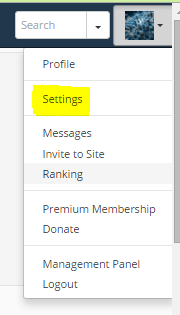
Click your profile picture to open your menu. From there you can change your language, board, theme (light or dark), Zen Mode, vacation and other settings.
Useful links and related sites.